
Your Guide to GettingStarted with EDU.FYI
Introducing EDU.FYI — a student experience built around you — unlocked by connecting your school on FYI.AI.
Turn class content into interactive AI Lectures, collaborate with your Agent inside projects, and create an Agentic Self that learns your goals and ambitions. It grows with you through every class, challenge, milestone, and big decision—from your first semester to graduation, your career, and beyond.

Connect Your Account
EDU.FYI lives inside the FYI app. Sign in to FYI, then link your school account to unlock EDU.FYI mode.
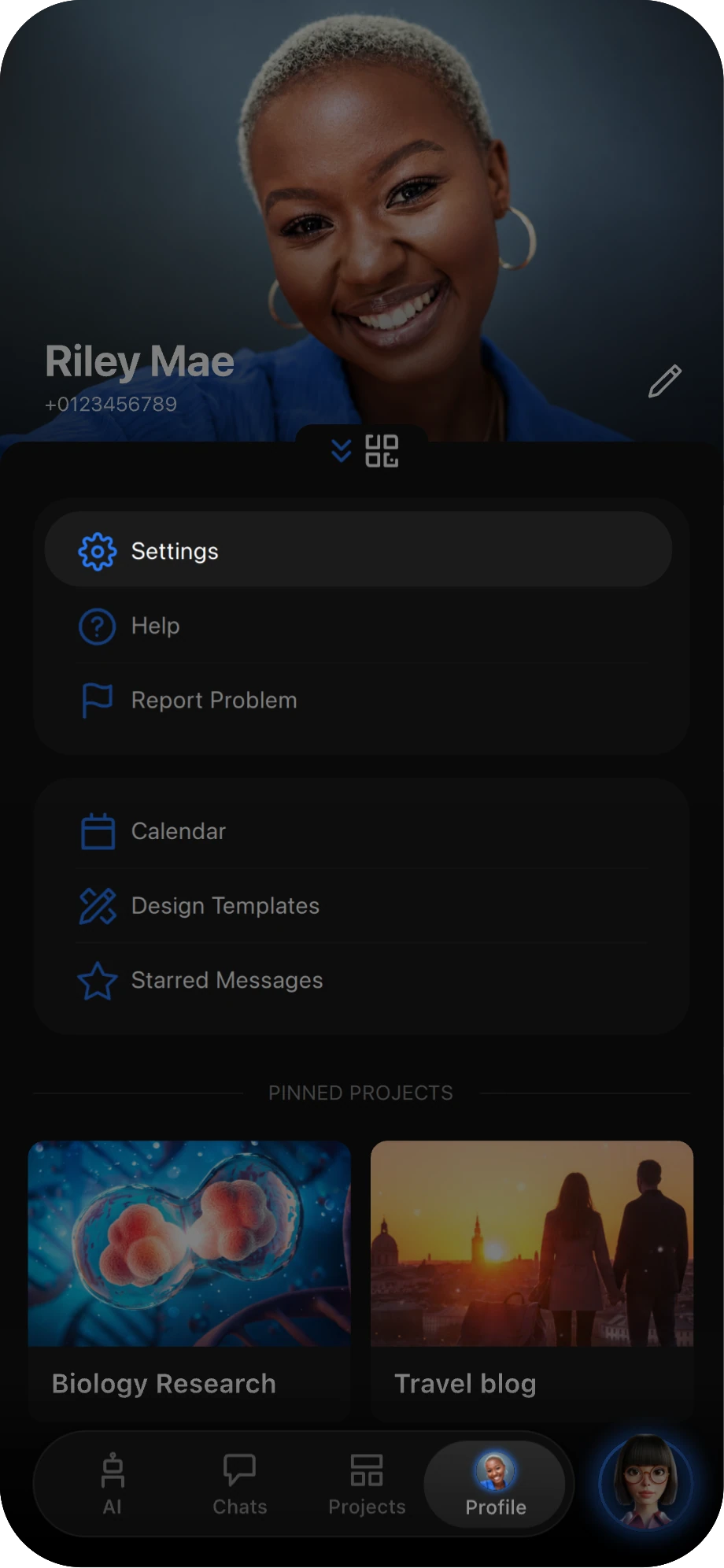
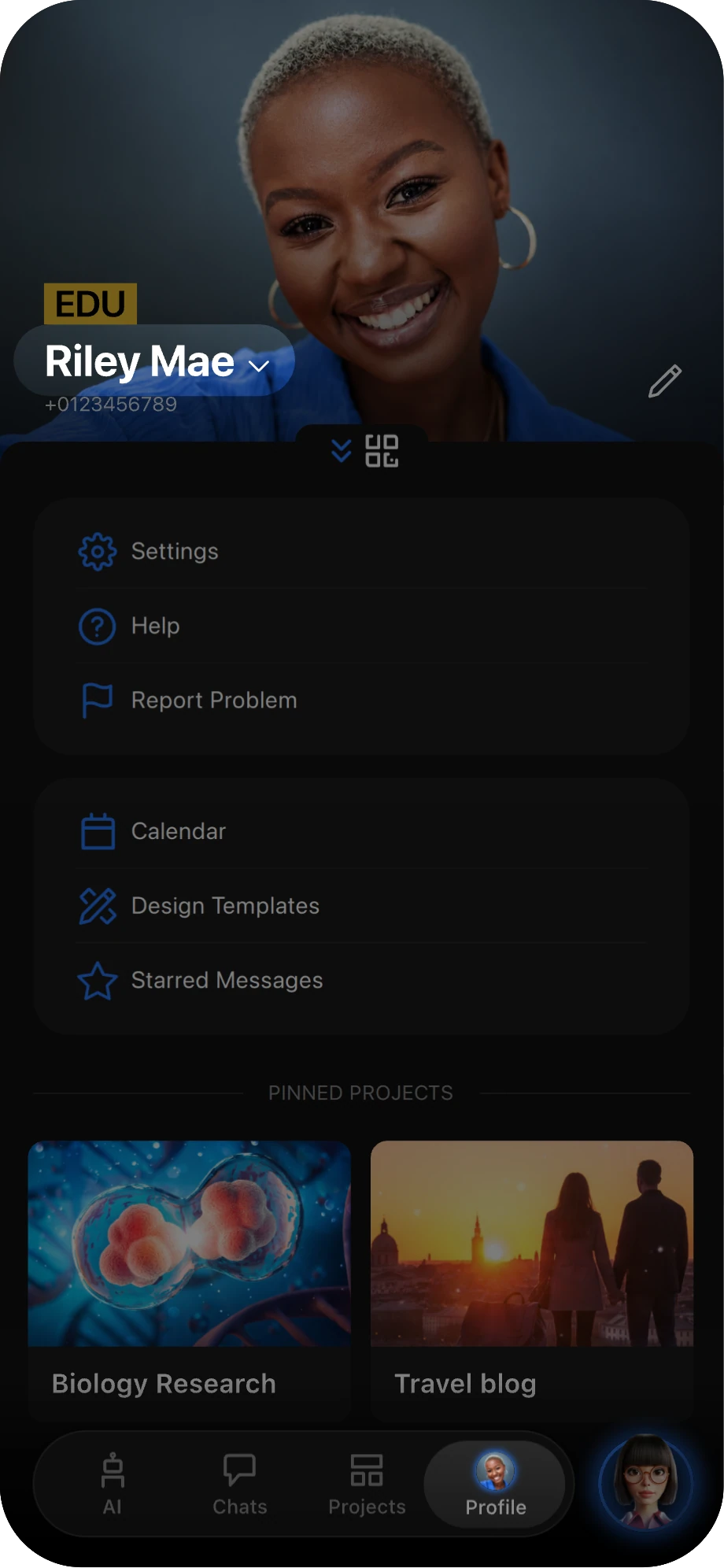
Go to your profile and tap Settings.
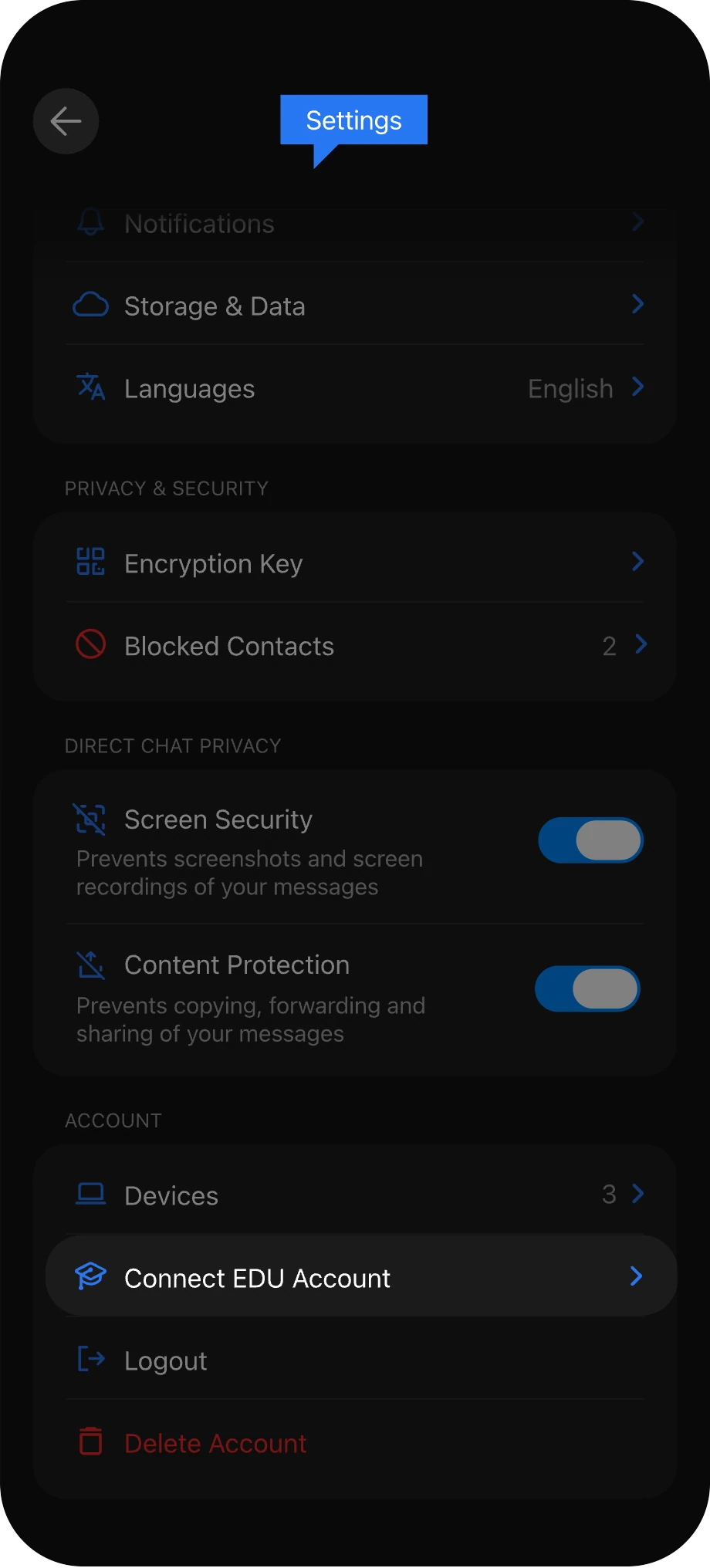
In Settings, scroll down and tap Connect EDU Account.
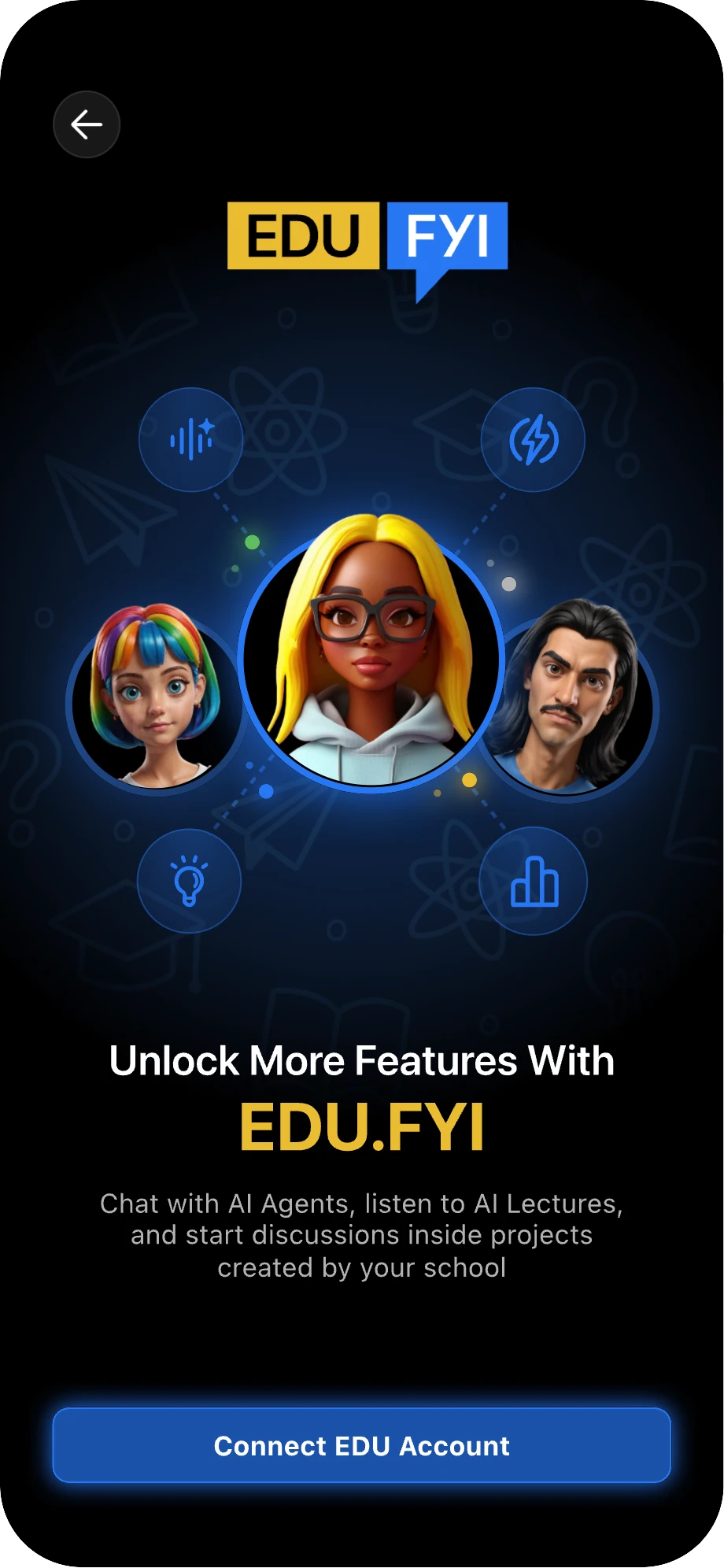
On the welcome screen, tap Connect EDU Account, then sign in with your school email address.
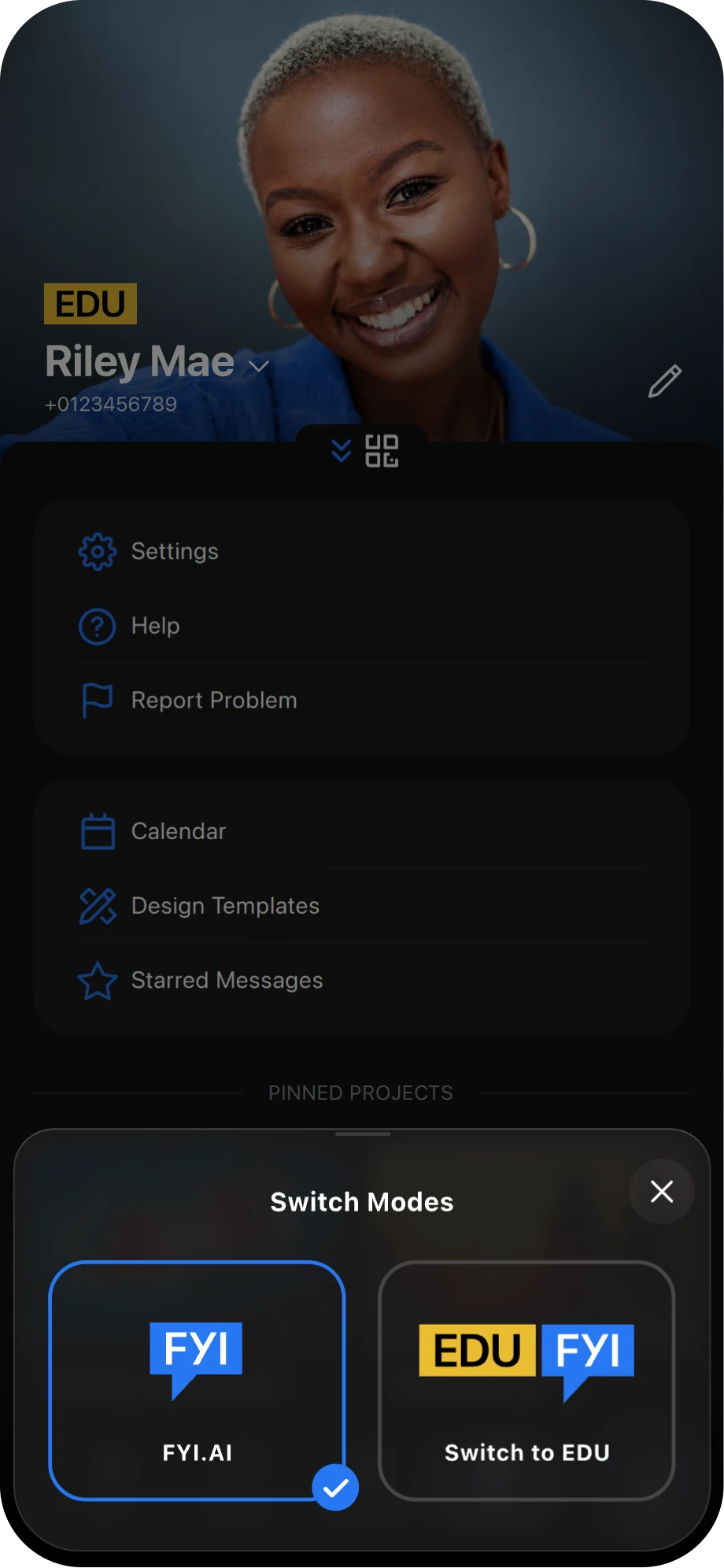
Once your account is connected, you will enter EDU Mode. Tap the drop-down arrow to switch between modes.
You can switch between two modes: FYI.AI and EDU.FYI.

Explore EDU.FYI
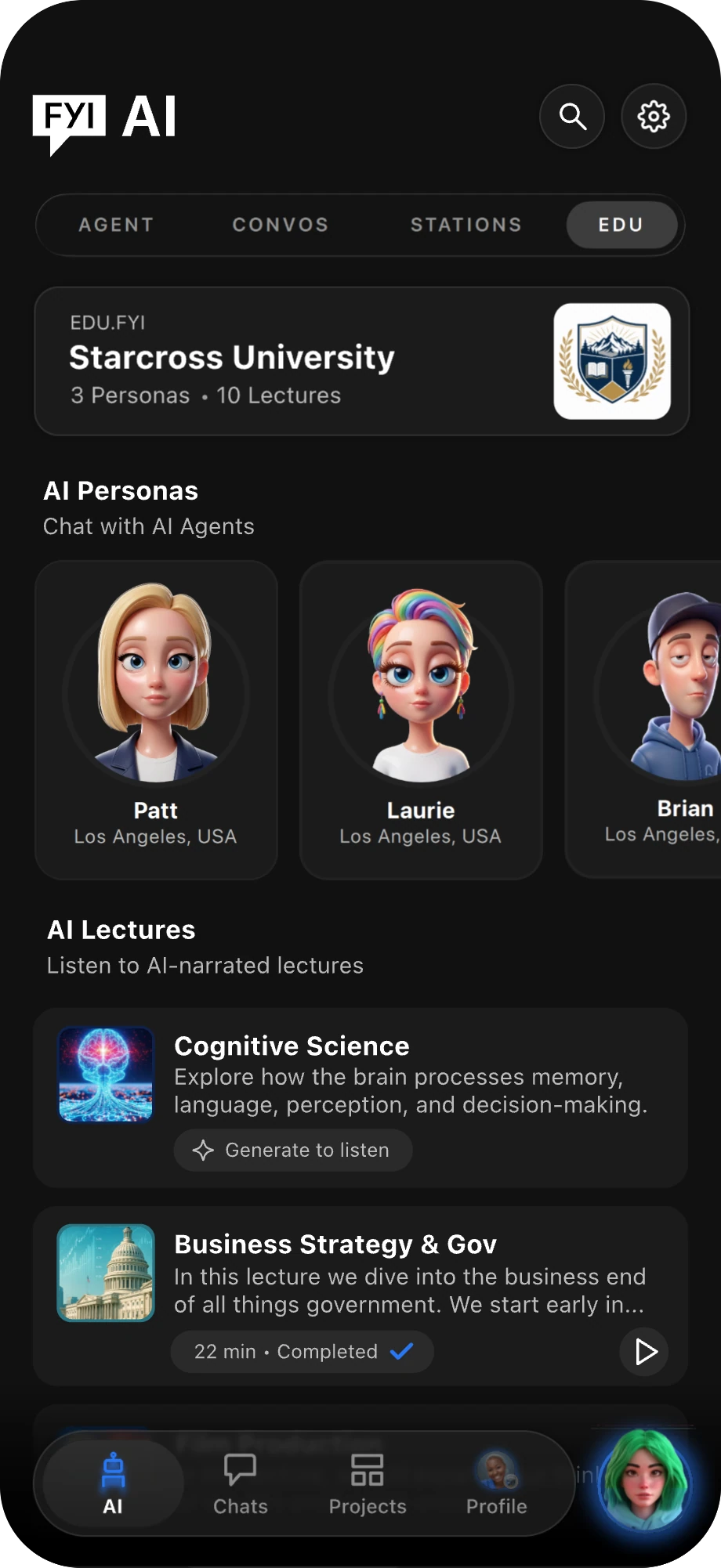
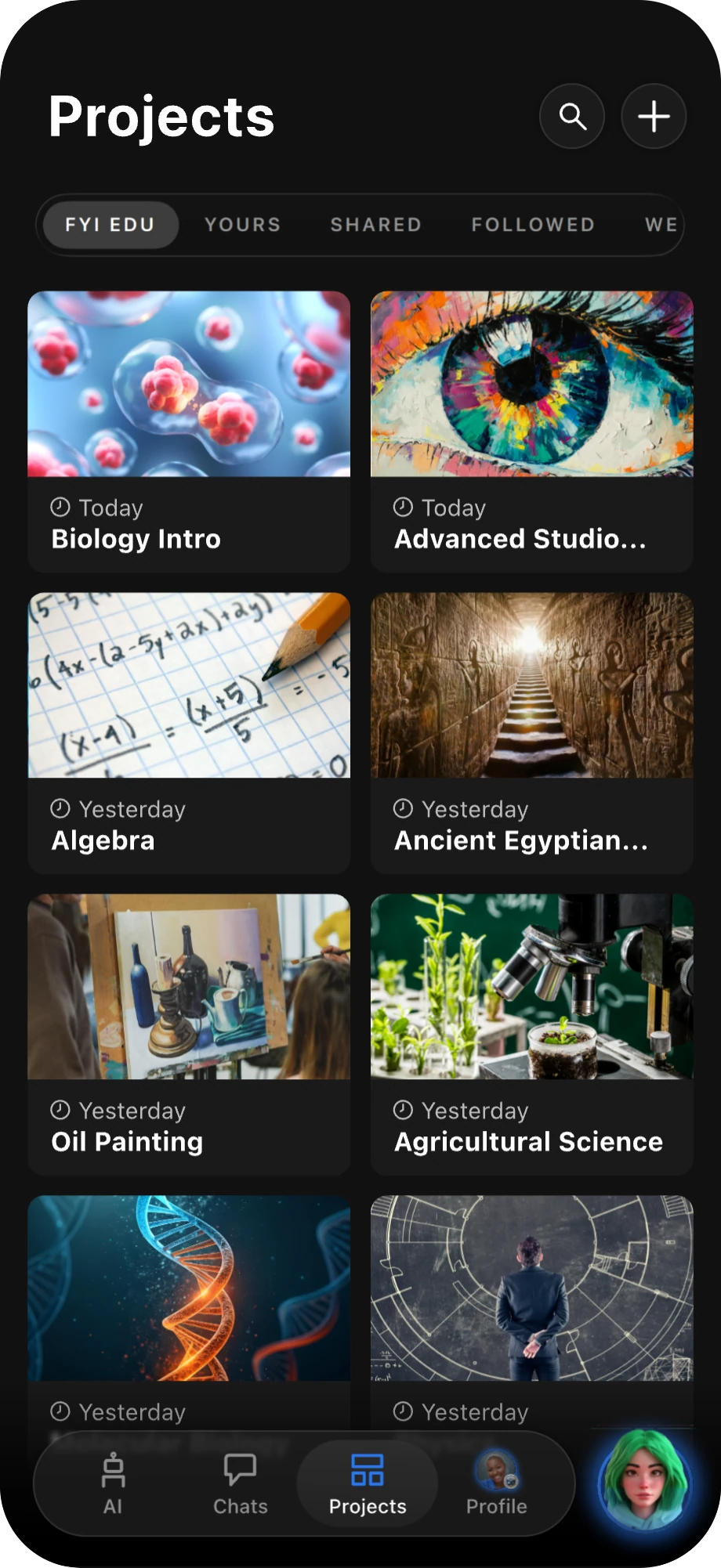
EDU.FYI adds two tabs to the app. Here's what each one gives you access to — tap a card to jump to its screen.
EDU AI Tab — This is where you can view and interact with your school's published AI Agents and AI Lectures.
EDU Project Tab — This is where you can access courses and school-related projects.
Build Your Agent
From the AI tab, tap Start Building to create your agent — appearance, name, and voice, no code required.
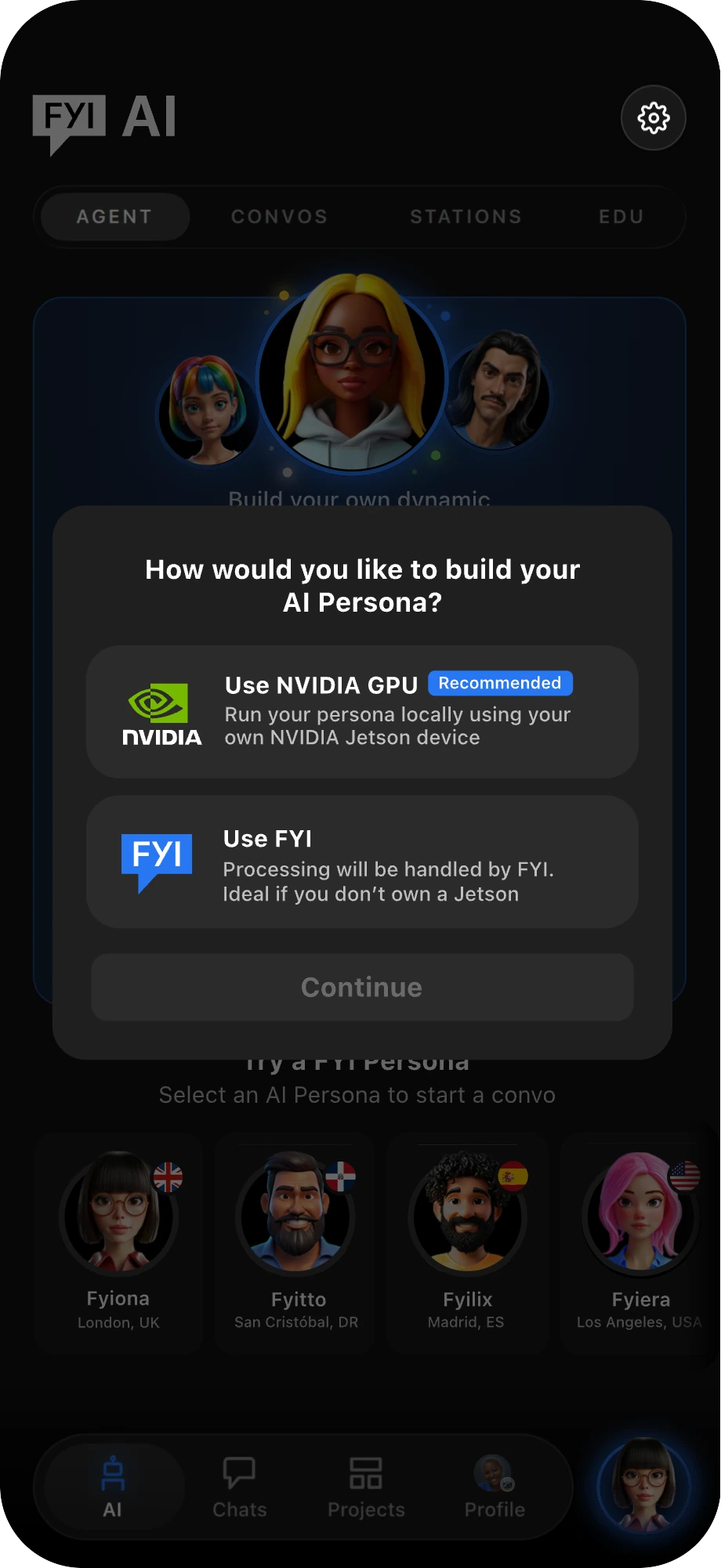
Go to the AI tab and tap Start Building.
Choose how you want to build your agent: NVIDIA GPU or FYI.
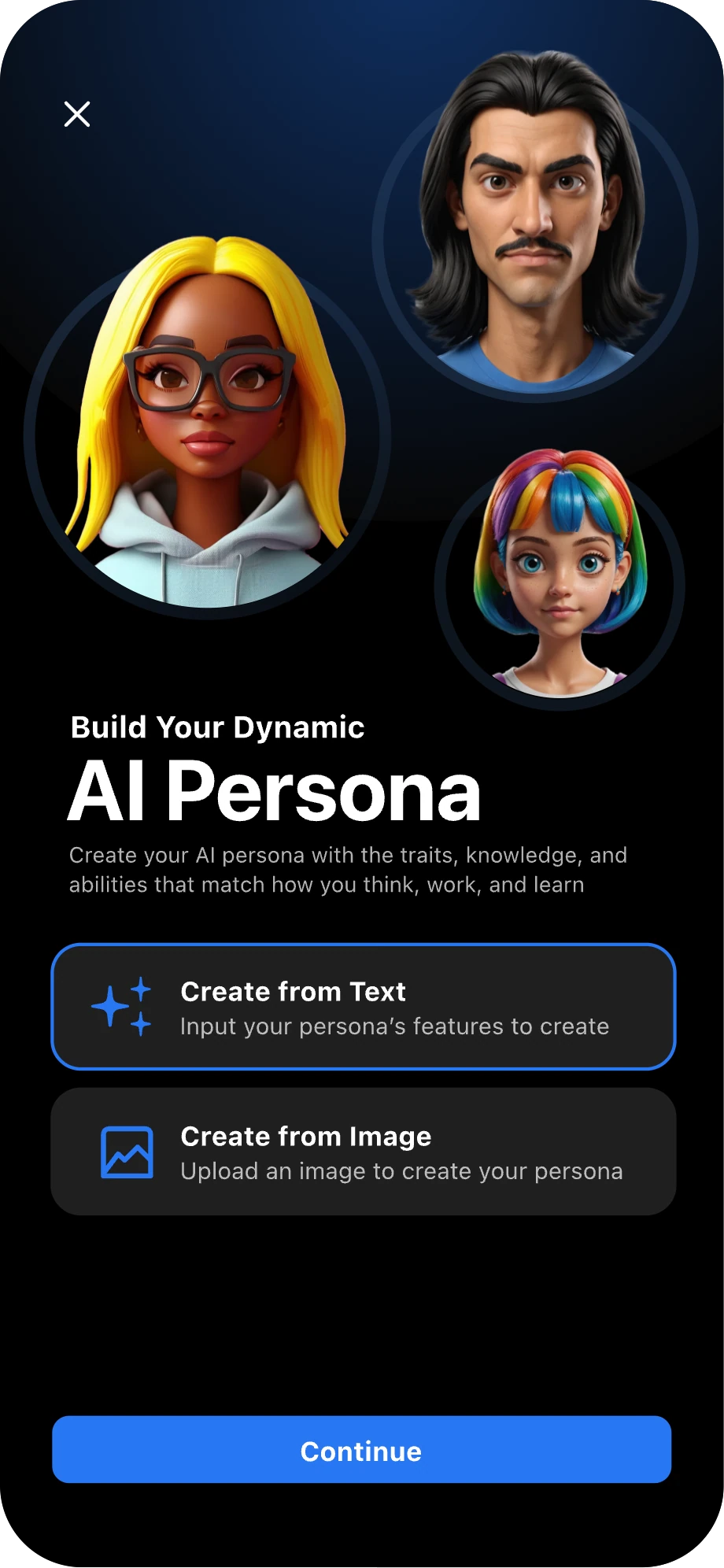
Begin creating your agent’s appearance by choosing either Create From Text or Image.
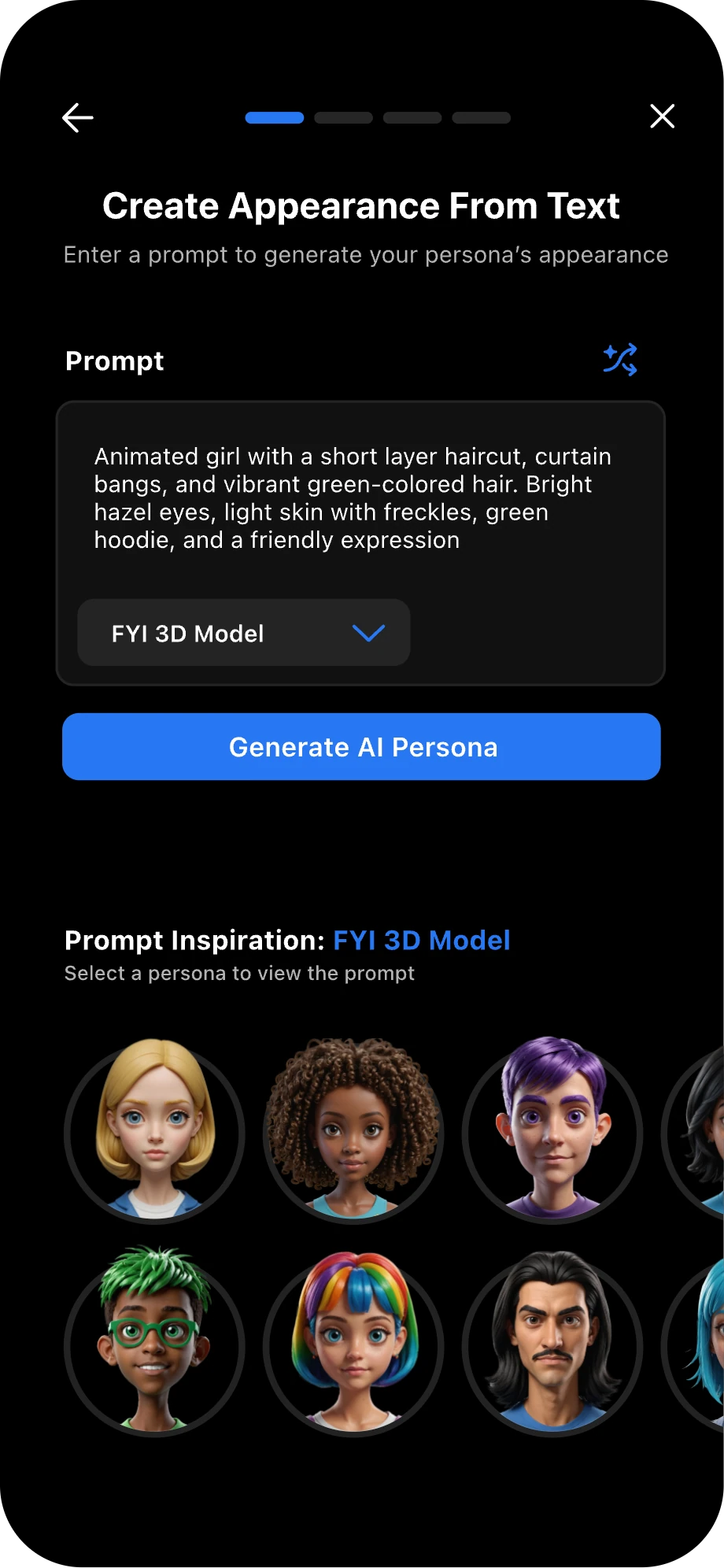
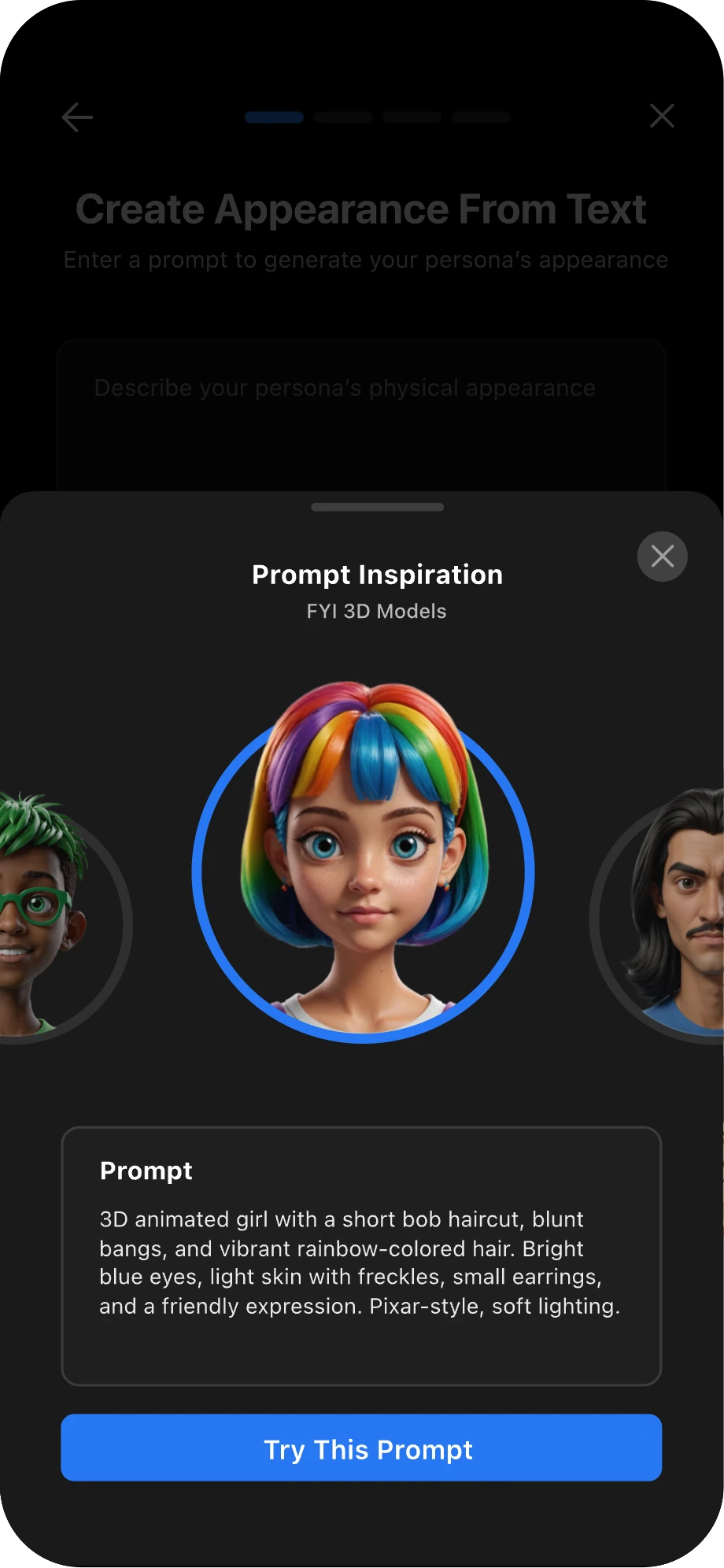
Enter an appearance prompt, then tap Generate AI Persona.
You can also select a prompt inspiration to try a suggested appearance.
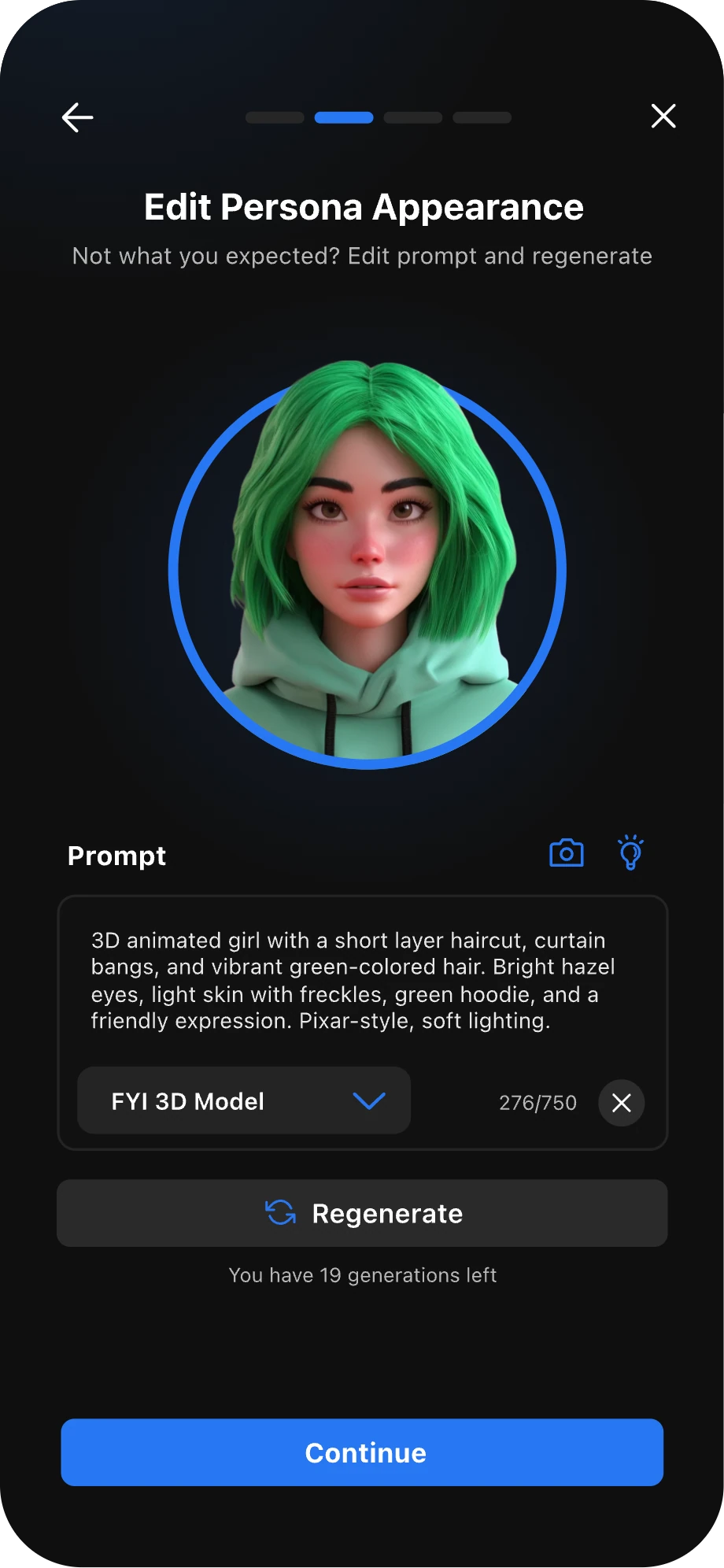
Once your agent’s appearance has been generated, you can edit the prompt and regenerate it, or regenerate it without making changes. When you are happy with the appearance, tap Continue.
Good to know
Image generation has a daily limit. "Persona" and "agent" mean the same thing.
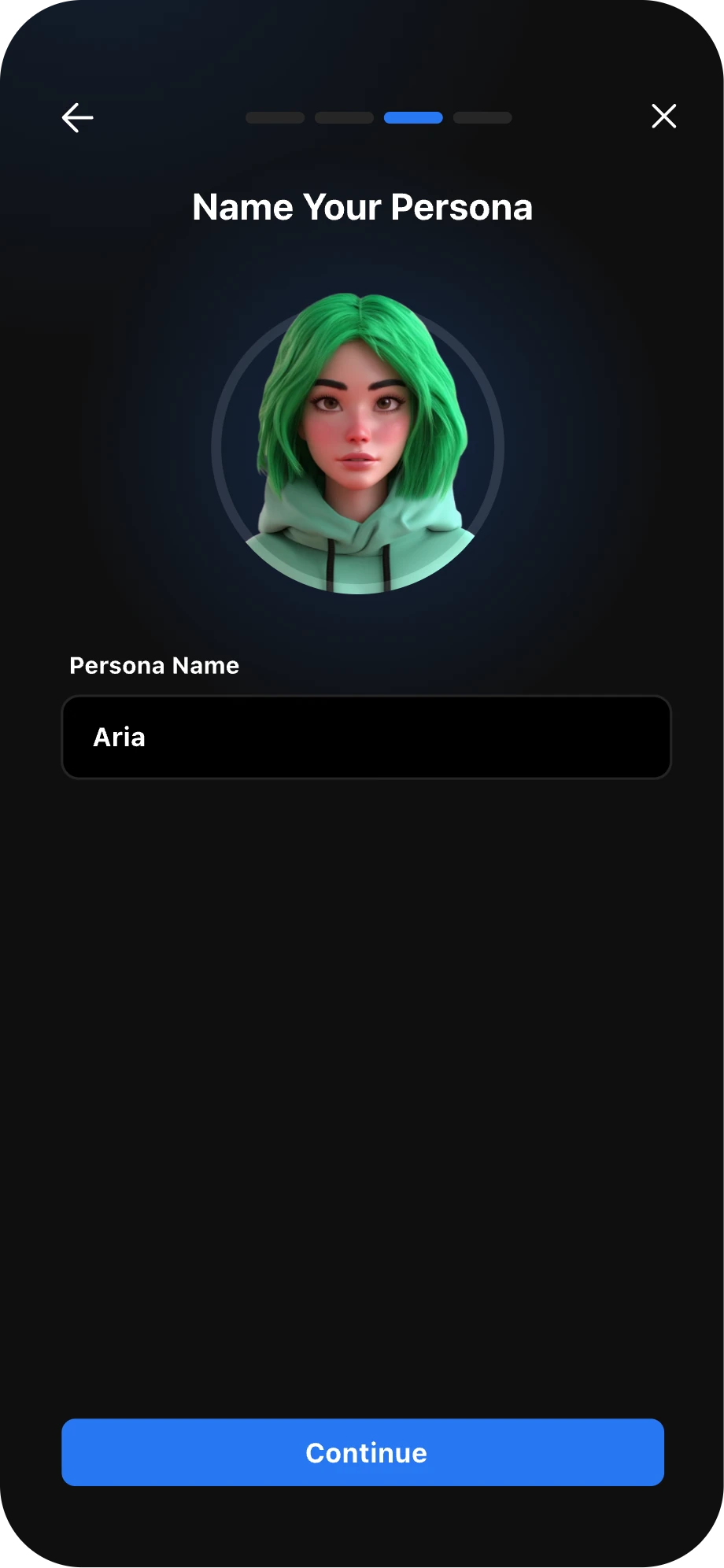
Give your agent a unique name.
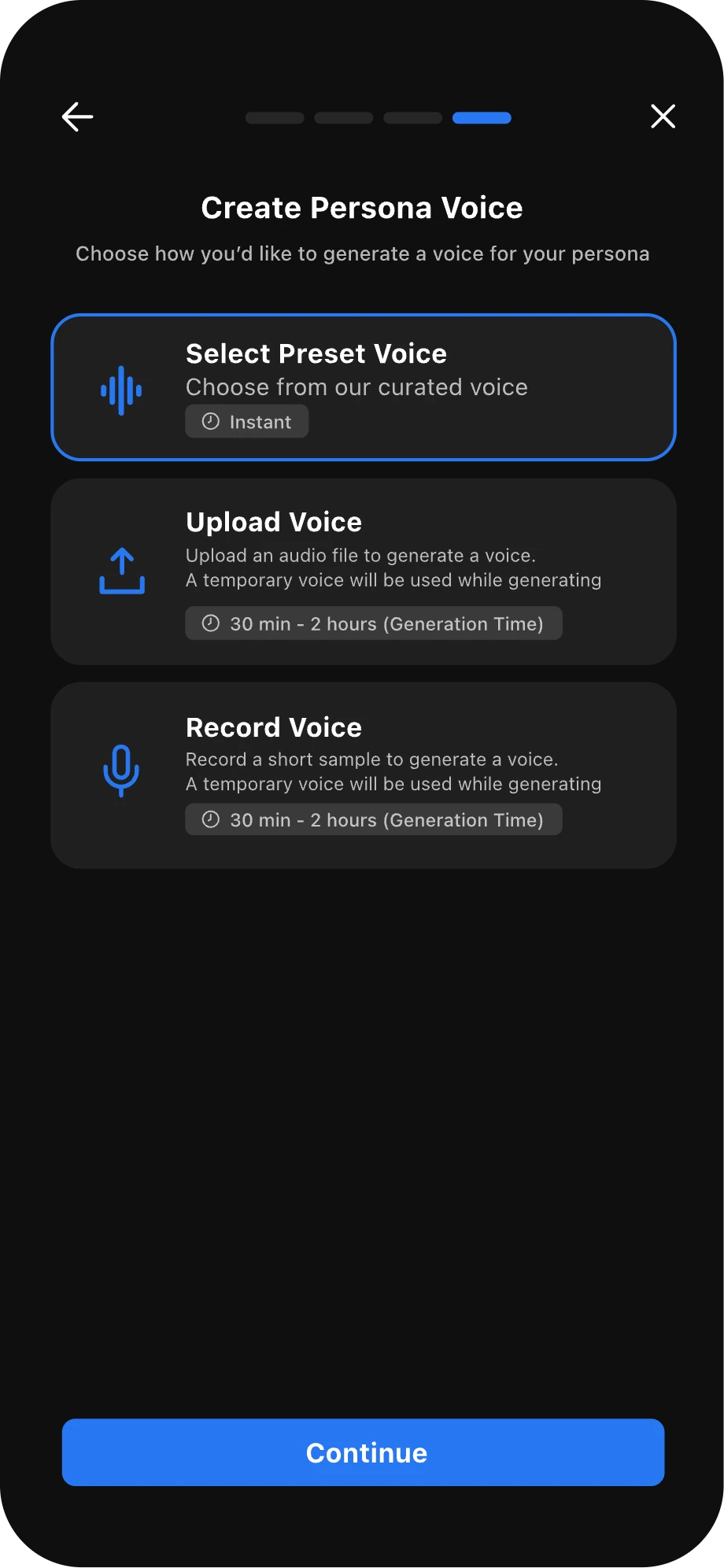
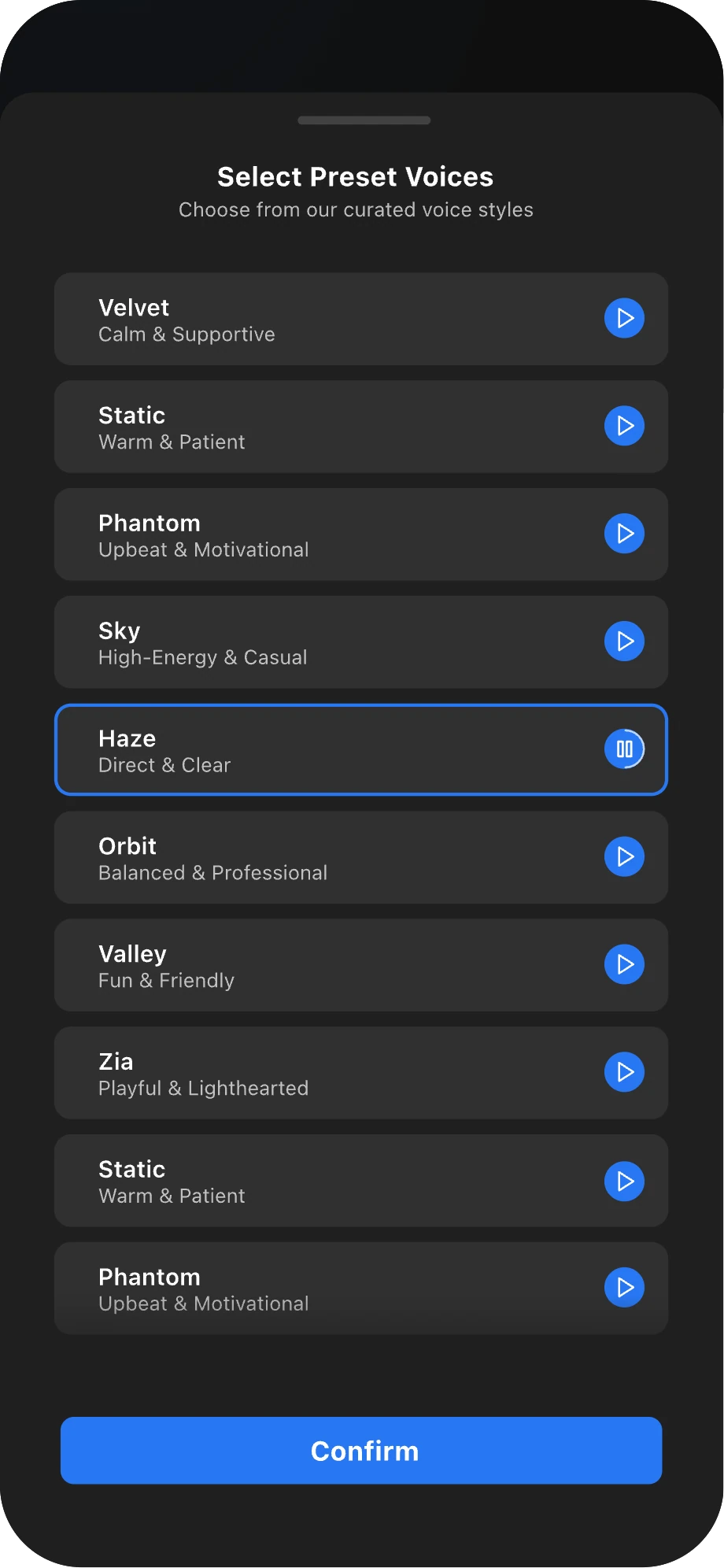
Create a voice for your agent. You can select a preset voice, upload a voice recording, or record your voice in real time to create a custom voice. Custom voice generation may take up to one hour.
Selecting a preset voice gives your agent a voice instantly.
Once you’re finished building your agent, you can start a convo with them anytime from the AI tab or by tapping the AI widget in your navigation bar.



Complete Agent Setup
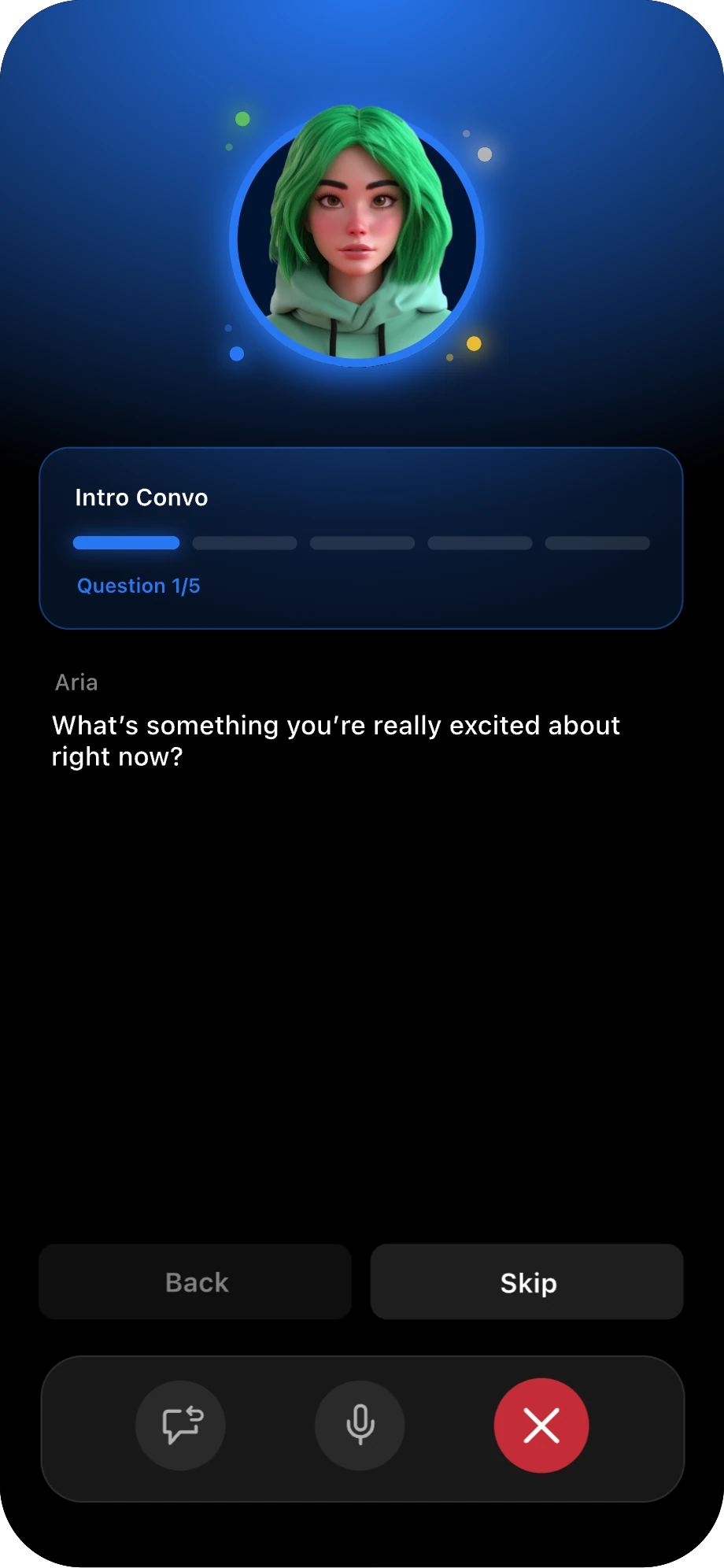
Once you’ve created your agent, you’ll be prompted to begin an intro convo.
During this convo, your agent will ask five questions to learn more about you and your goals. This helps your agent provide more personalized support.
You can skip this step and complete it later from the AI Agent tab anytime.


Voice Lab
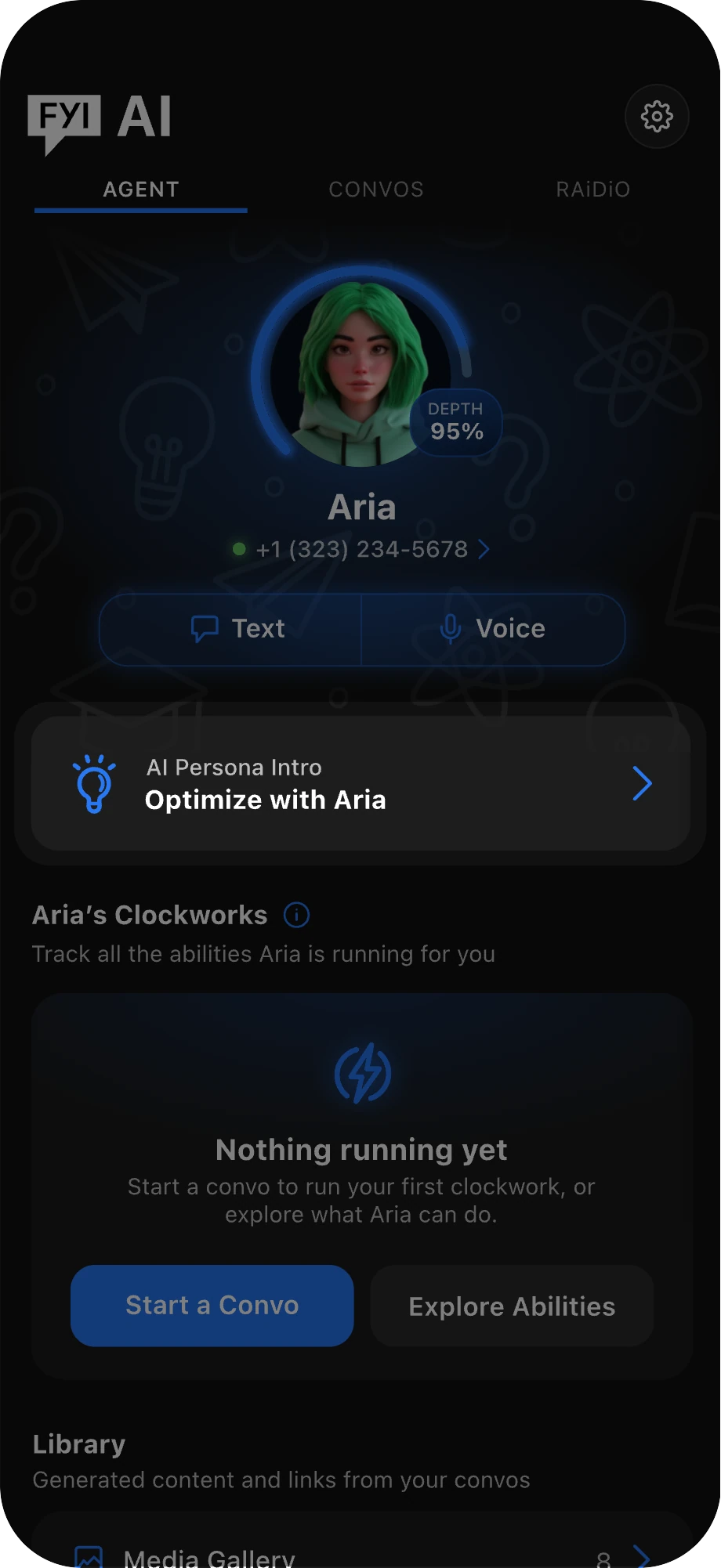
Inside the Voice Lab, you can bring your agent’s personality to life. Upload or record a voice recording to create a custom voice, then add its mission, perspective, and expressions to shape how they speak.
To enter the Voice Lab, navigate to the AI tab and tap the Settings icon.
Inside your Agent’s settings, tap Voice Lab.
In the Voice Lab, you can preview your Agent’s current voice and add customizations. Let’s explore everything you can personalize about how your Agent sounds and responds.
When you tap Change Voice, you can choose from preset voices or record your own to create a custom voice for your Agent.
Good to know
A preset voice is the fastest way to finish. Custom voices need an eligible plan and aren't ready instantly.
Add Your Persona’s Mission to guide how your Agent supports you. Add links and files to give your Agent more context.
Tap the Perspectives dropdown to add your Agent’s beliefs, concerns, interests, point of view, and passions.
Tap the Expressions dropdown to customize how your Agent speaks by adding opening phrases, closing phrases, and word replacements that make its voice feel more personal.
Each Voice Lab customization you add increases your Agent’s Depth Score, reflecting how effectively it communicates and engages in convos.


Abilities
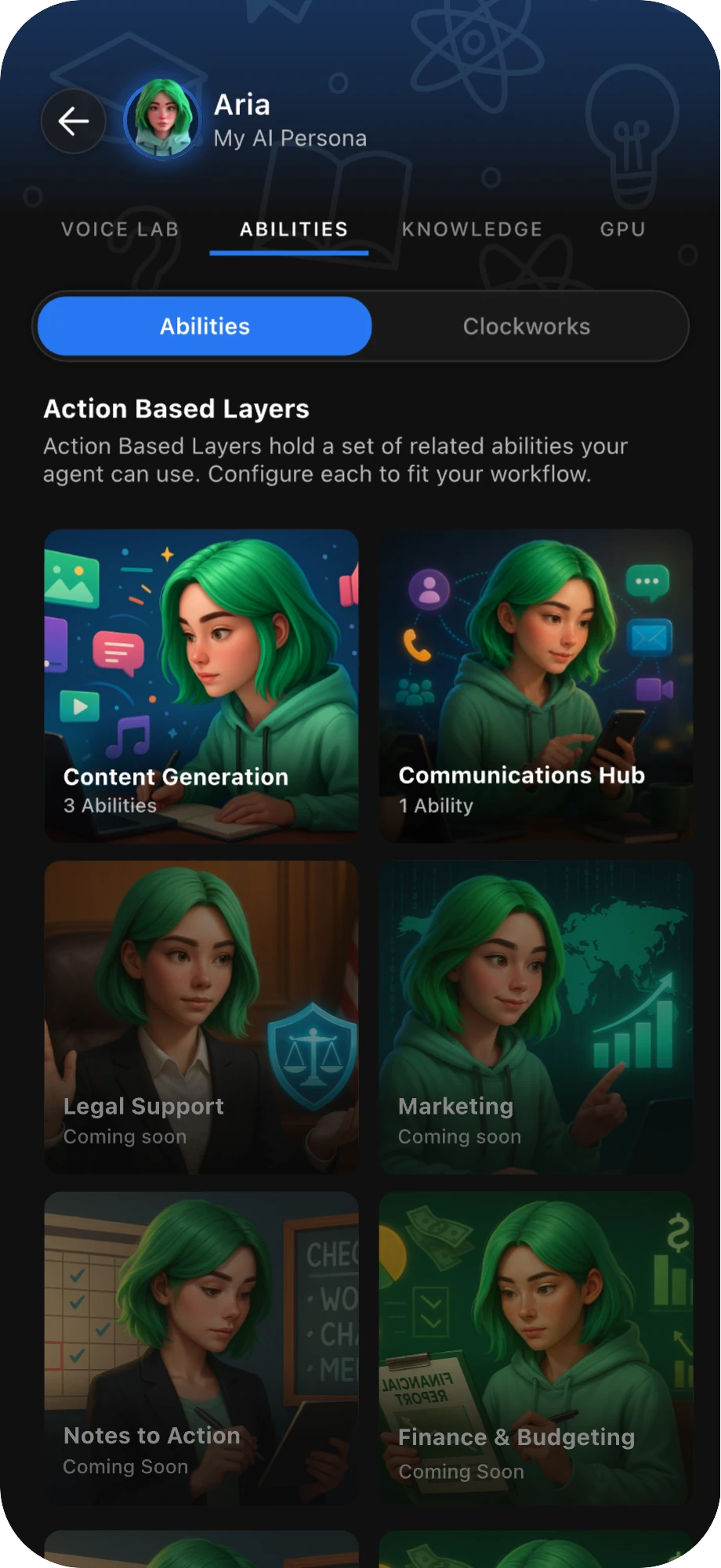
Abilities are your Agent’s action tools — the fun part where they get things done for you. Activate them from the Abilities tab or inside any convo with your Agent.
Navigate to the Abilities tab in your Agent’s settings to explore each category and the abilities inside.
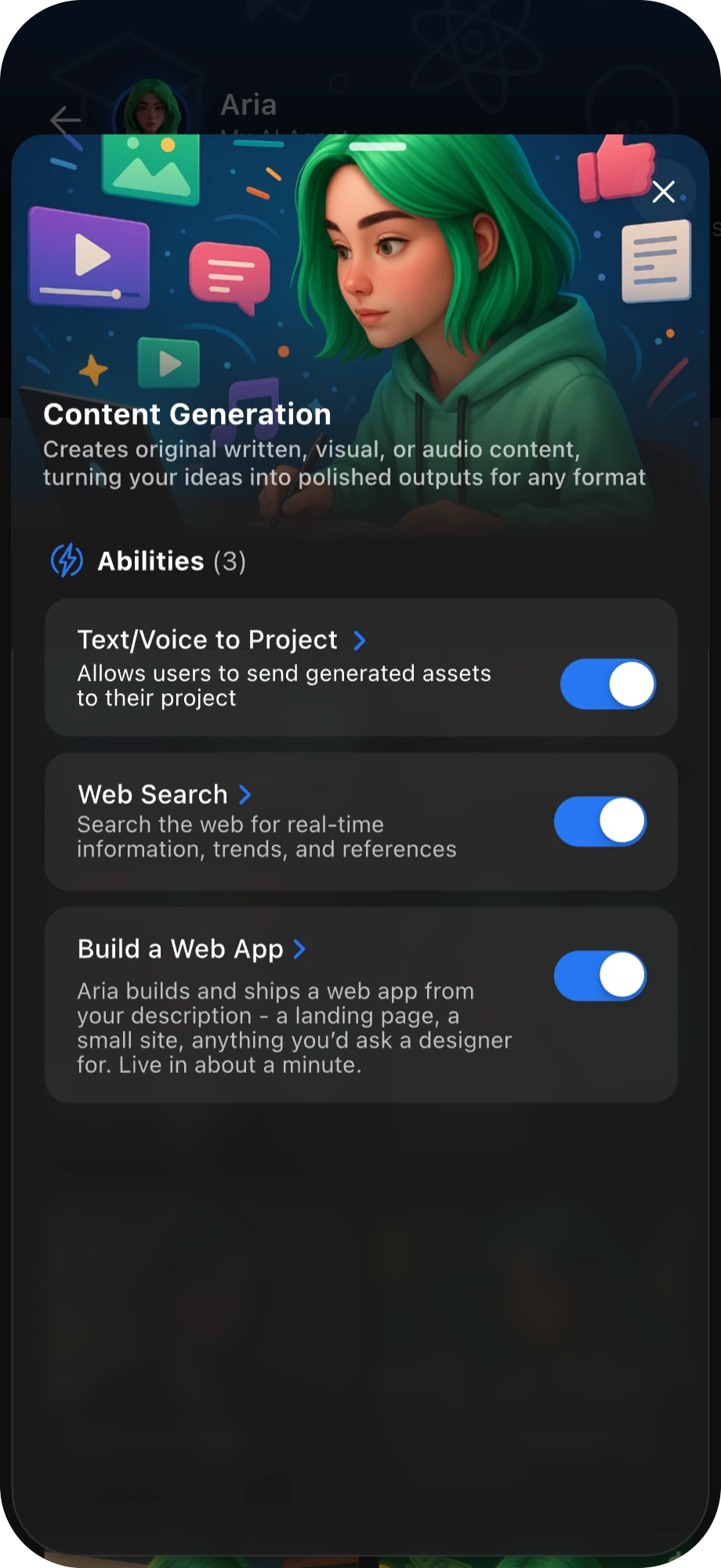
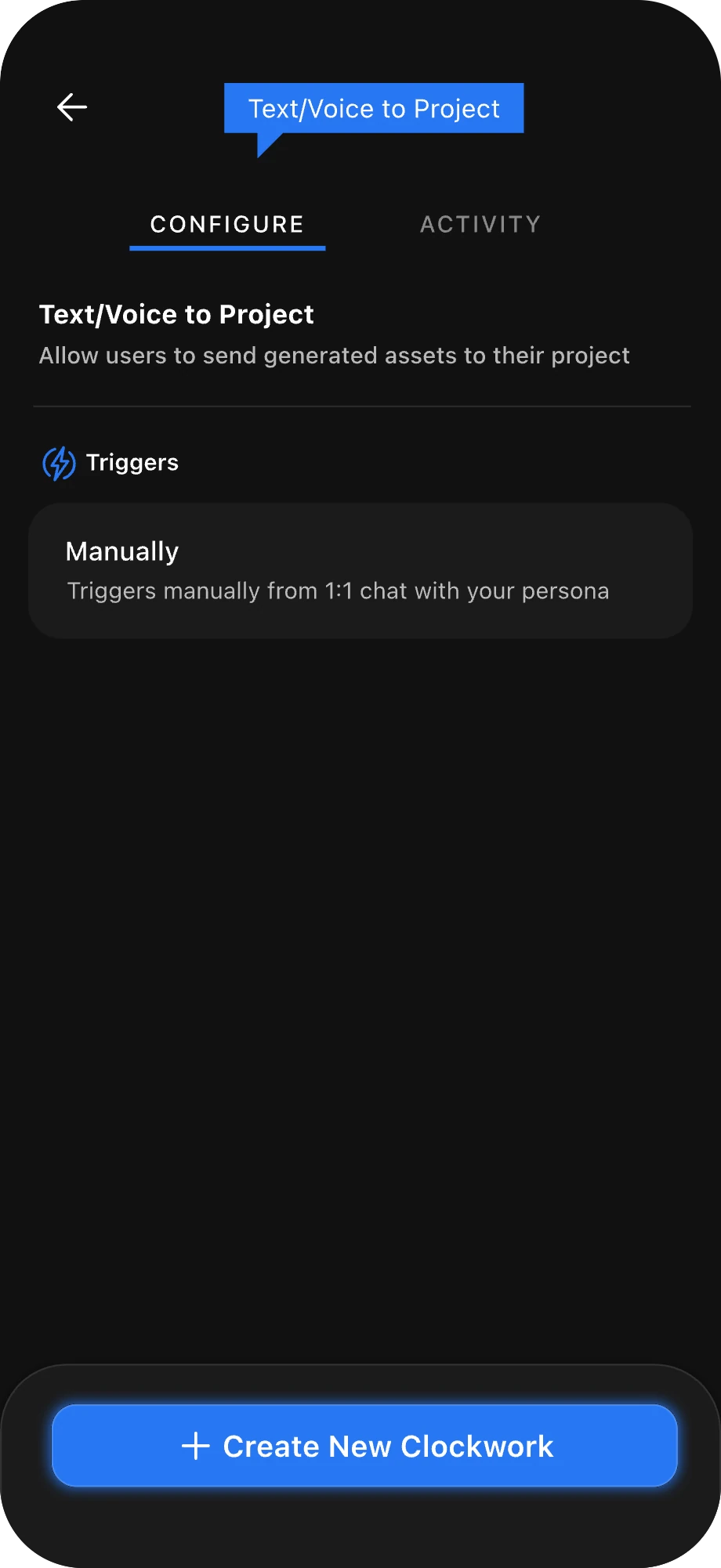
Open any category to enable abilities, then tap one to see what it can access and what it can do.
Tap Create New Clockwork to start a conversation with your Agent.
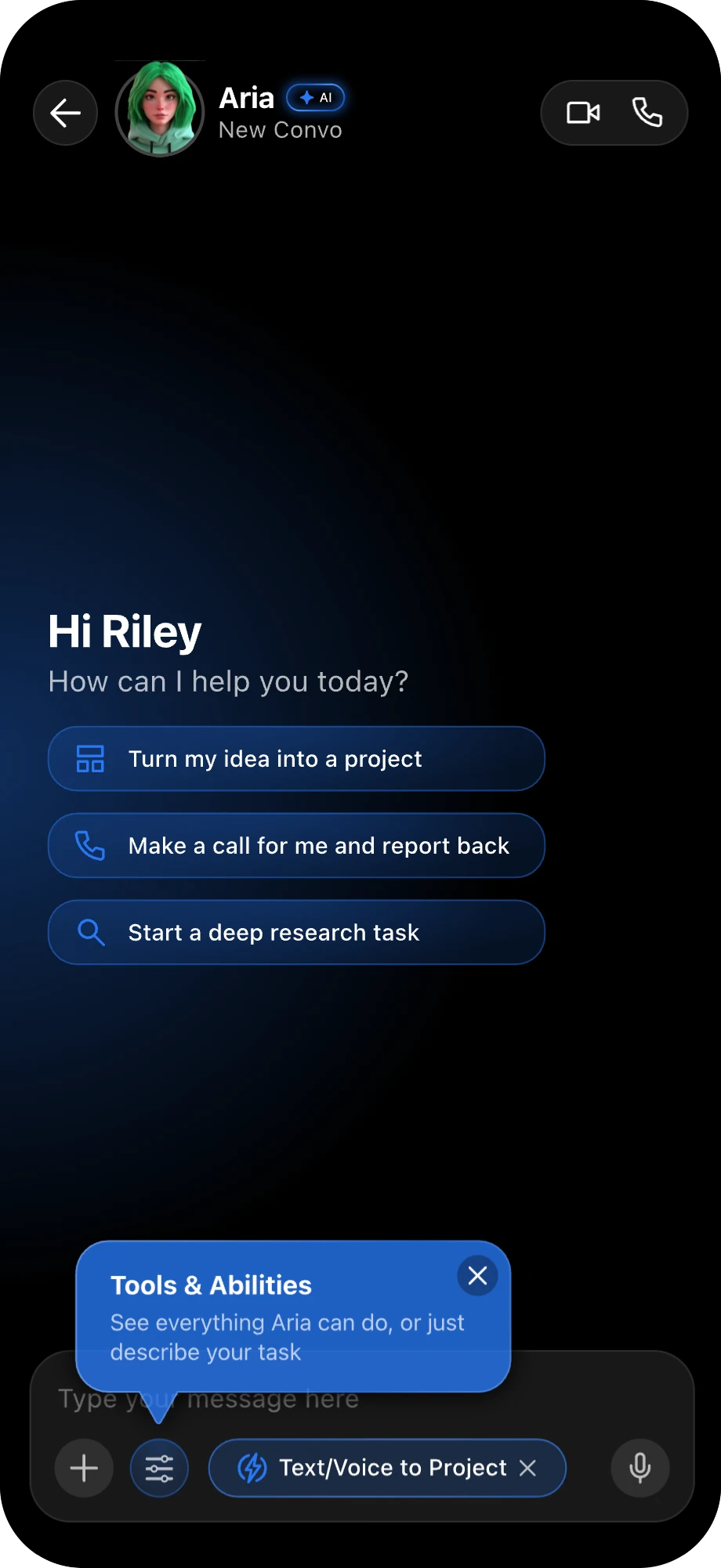
In a convo with your Agent, tap the Tools icon in the chat bar to enable an ability.
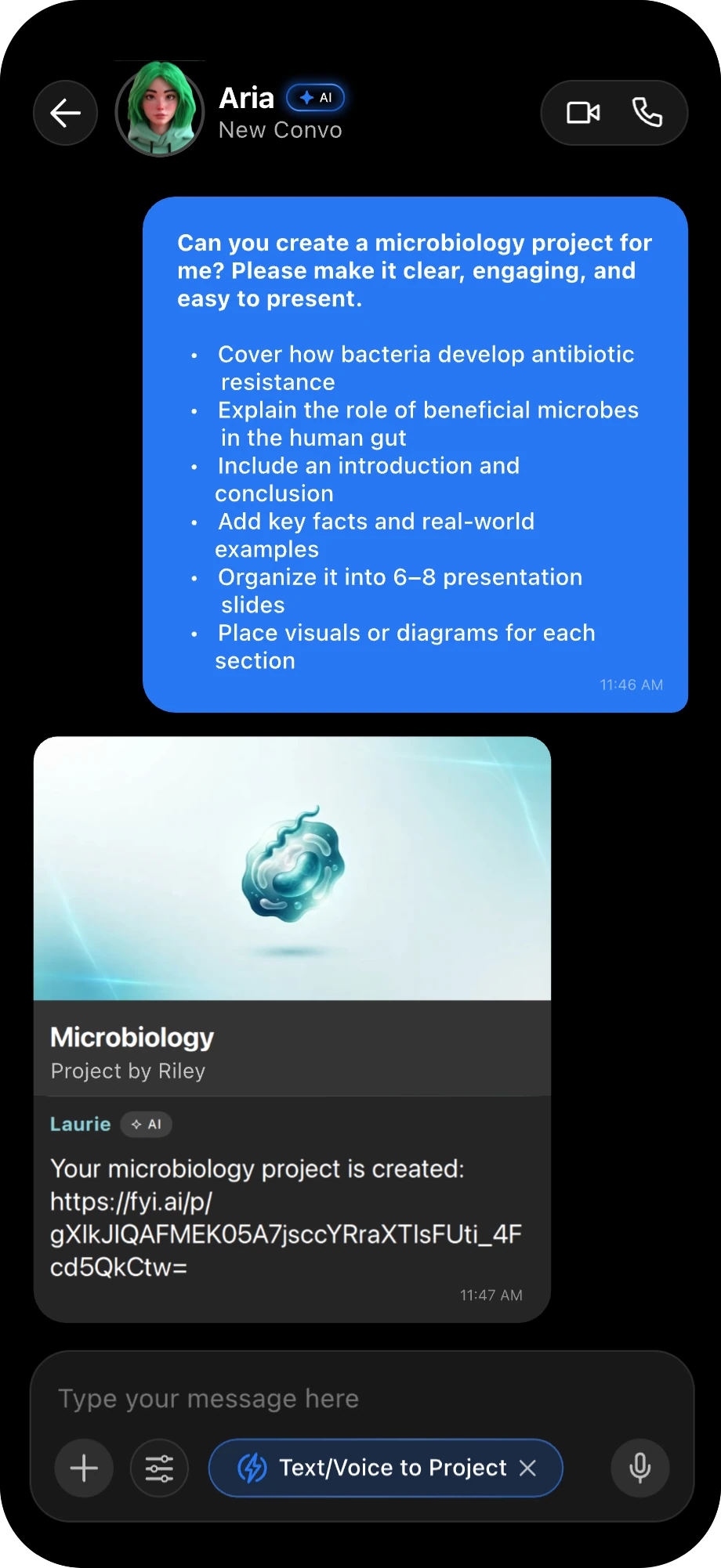
With an ability enabled, give your agent clear instructions and watch it start a Clockwork for you.
Abilities guide
What each ability can do
Enable only the tools that fit your workflow. Some abilities require permission to access another service, your contacts, a meeting, or connected hardware.
01
Content Generation
Research, create, and turn ideas into useful outputs.
- Text/Voice to ProjectBuild a new project or add generated material to an existing project from one text or voice prompt.
- Web SearchSearch current sources and synthesize relevant findings into a clear response.
- Build a Web AppDescribe a landing page or small site and have the Snap agent build, deploy, and share a live URL.
- GPS & NavigationFind places, calculate routes and ETAs, and open turn-by-turn directions on your phone or CarPlay.
02
Communications Hub
Connect your persona to the people and services you use.
- Slack Integration Coming soonRead mentions, search channels, send messages, and respond through your connected Slack account.
- Text/VoIPCall or message contacts on your behalf, collect their feedback, and summarize the result.
- Google Integration Coming soonWork with Gmail, Google Drive, and Google Docs to find, send, create, or edit content.
- GitHub Integration Coming soonBrowse repositories, read files, and review issues and pull requests.
- Join Meeting Coming soonJoin a Google Meet, follow the conversation, participate when addressed, and return a summary and action items.
03
Notes to Action
Turn requests and ideas into trackable background work.
- ClockworkSchedule a one-time or recurring workflow that can combine several enabled abilities and report the result in your Convo.
04
Learning Support
Use connected learning tools and hardware for guided analysis.
- XRP Match ReviewReview code and sensor telemetry from your latest XRP robot run and explain what happened.
- FIRST Global Robotics KitDiscover connected robots, send commands, and report live fleet telemetry.
Education workflows to try in a Convo
“Research how sleep affects learning and memory for my psychology paper. Search credible academic and health sources, compare what they find and flag where they agree or have limitations, then write me a cited research brief with a paper outline and a few follow-up questions I should look into.”
“Use my biology project notes to build an interactive study app for cell division. Review my relevant project blocks, notes, and files, organize the material into flashcards, a quiz, and a progress checklist, then build and deploy the app, share the live URL, and revise it based on my feedback.”
“Join our Google Meet study group for tomorrow's history exam. Follow the group discussion, capture the key concepts, unresolved questions, and the topics assigned to each person, then send me a summary with action items and a shared revision plan we can all work from.”
“Every weekday at 7 PM, prepare my study plan for the next day. Review my upcoming course deadlines and calendar events, prioritize the work by due date, effort, and importance, then build a focused study schedule with reminders, post it in my Convo, and adjust future plans based on how much I get done.”
Put your agent on the clock with Clockworks
Clockworks are scheduled or recurring actions your agent runs in the background — like a weekly call or a standing report.
Create a Clockwork by asking your persona to perform a scheduled or recurring workflow.
Filter your Clockworks by date range, ability category, or status.
Track each run as In Progress, Completed, Cancelled, or Failed.
Open a Clockwork to review its live status and step-by-step progress.
Manage the run — cancel upcoming runs, review summaries or failure logs, or jump back to the original chat.
Your agent can also handle calls. Assign it a Callback Number so it can place and receive calls on your behalf.


Grow its Depth with your own knowledge
Depth measures how effective your agent is, shown as a percentage. A new agent starts as a "Generic AI Agent" and levels up as you feed it your knowledge.
The Knowledge screen pairs broad subjects with your own material — pick topics to master, then add files, links, and personal context.
The Depth screen breaks your score into four dimensions:
- Human Insight Integration — human understanding over surface data.
- Emotional Intelligence — empathy and human values.
- Lived Experience Evidence — grounding from your own materials.
- Creative Dynamism — originality and range in its responses.
To raise it, add your own material and follow the screen's Recommended Actions:
Select subjects and topics, then Save.
Add Files & Links — PDFs, transcripts, textbooks, URLs.
Detail your Persona Mission — a clearer purpose sharpens every reply.
Add Beliefs & Passions to shape its worldview.
Add Word Replacements — signature phrasing that's unmistakably yours.
Good to know
Use both: subjects give broad expertise; your files and perspectives make it uniquely yours.

10 Chats & collaboration
Add your Agent to group and 1-to-1 chats
Bring your Agent into an existing conversation so it can answer questions, summarize the thread, use enabled Abilities, and run Clockworks with the people in that chat.

Invite it into a conversation
Open a group or 1-to-1 chat, then tap the chat title or the other person's name.
Scroll to the Agent section and tap Add <your Agent's name>.
Review and accept the terms if you agree to them.
Return to the chat and look for the message confirming that your Agent was added.
Take it out of one chat
Open the chat details, scroll to your Agent, tap the three-dot menu, and choose Remove.
Turn Agents off for the thread
Open the chat details, find the Privacy section, and turn off Enabled Agents in Chat.
Use your Agent once it joins
Assign a task
@Agent, summarize the last three hours of this conversation.
Ask a follow-up
Reply directly to an Agent message when you need clarification or another version.
Create or research
@Agent, generate an image of a pink sky over a white-sand beach.
Automate the thread
Mention your Agent to schedule a reminder or recurring workflow connected to the discussion.
Good to know
You can add your Agent only when Agents are enabled for that thread. In group chats, you may also interact with another member's Agent when their permissions allow it.

Turn any project into an AI Lecture
Your agent turns a project's blocks and files into an interactive, audible lecture you control.
Make sure EDU.FYI mode is active. To enable AI Lectures for a project, open its menu, tap Edit Project, and use the AI settings.
Open the project menu, tap AI Lectures, then tap Generate AI Lecture.
Wait for generation to finish — you'll receive a push notification when the lecture is ready.
Use the playback controls to play, pause, skip, or jump to a topic from the segments dropdown.
Ask questions or add supporting files from the lecture using Chat/Mic and Add Files.
Lecture settings let you change the voice personality, playback speed, and whether media is shown. You can also regenerate the lecture with your updated settings.

Bring your agent into your projects
With AI in Projects, your agent works inside your course materials — not in a separate chat window.
Open a project — for example a course like HIST 220 or MUS 101.
Tap the AI Widget to ask questions answered from that project's own data.
Use Voice AI to talk it through, or attach a specific project block for context.
Move between tabs — Project, AI, Calendar, and Discussion — and even build web apps inside a project.


You're set up — and there's more
That's the core loop. As you go further, a few extra tools are worth knowing about.
For faculty
Publisher Tool
How university officials create and publish personas and lectures for the student body.
Create
Compose & Clips
Generate audio clips in your persona's voice; Stylized text weaves in its signature expressions.
Advanced
Jetson GPU
Connect local hardware to keep sensitive data private on your own network and host deterministic services.
Here's everything you now know how to do:
- Connect your university account and enter EDU.FYI mode
- Build and voice your Agentic Self
- Complete the Kickoff Convo and grow its Depth
- Add your Agent to group and 1-to-1 chats
- Use Abilities, AI Lectures, AI in Projects, and Clockworks
Ready to meet your Agentic Self?
Set up your persona in minutes — no code, fully yours.